
GrapheneOS is a privacy- and security-first operating system for Pixel phones. This is how I have it deployed on my phone: the features I actually use, the apps I added to fill the gaps, and the few Google apps I kept on purpose. The overall theme is big privacy, but I want it to be usable still.
Runbooks: GrapheneOS Playbook on GitHub
Watch the Tour #
What GrapheneOS Is #
GrapheneOS is a privacy and security first operating system. It’s a fork of Android, and it runs on Pixel phones. It’s got a lot more hardening, and it adds a lot of neat features that you’ll see below.
The GrapheneOS website has a lot of good stuff on the features, and it’s where you want to get it. Check the supported devices list first, then use the official web installer.
The deeper security work is mostly invisible. This post covers the parts you can see and use.
The Lock Screen #
- Scrambled PIN. Everything changes place: the PIN pad is in a different layout every time you open the phone, so watching your fingers doesn’t give away your PIN. Docs
- Two factors. You can have a fingerprint and a PIN code. You have to have the fingerprint first, then you get to the PIN pad. Docs
- Duress credentials. It’s the same PIN pad, but a different unlock code, and when you enter it, it wipes the whole phone: the device data and installed eSIMs. Pretty neat. Docs
I explain the duress PIN in the video rather than demo it. Testing it would erase my phone.
Here’s why you need a PIN involved somewhere in the unlock process, and you don’t want to just do straight biometrics (which GrapheneOS can do, but I don’t recommend it): if you have a fingerprint, someone can just physically use your finger to unlock the phone. You can’t do that with a PIN pad.
There’s a legal angle too, at least in the US. A memorized code can have Fifth Amendment protection that a forced fingerprint might not. Getting your fingerprint onto the phone against your consent is a lot easier than getting a code out of your head.
Note: it isn’t absolute either way. Courts have reached different results on compelled fingerprint or thumb unlocks (Payne, 9th Cir. 2024; Brown, D.C. Cir. 2025), and New Jersey’s top court allowed compelling a passcode (Andrews, 2020). What the extra PIN does guarantee is that my finger alone won’t finish the unlock. Not legal advice.
App Permissions #
GrapheneOS also adds a cool thing in the permissions. This is kind of its claim to fame: you can see exactly what each app is allowed, and you get controls regular Android doesn’t have, per application.
Network #
This Network setting is a new permission GrapheneOS adds to Android, so you can revoke network permissions from apps, which is really cool. Docs
As of writing, the regular GrapheneOS Camera app just isn’t quite as good as Google’s Pixel Camera, and the GrapheneOS team acknowledges this: Pixel Camera gets full use of the Pixel’s camera and image-processing hardware, and they aim to close that gap over time (camera docs). So I put Pixel Camera back on the phone, but I can make it very secure with these custom permissions. It doesn’t need sandboxed Google Play, and with Network set to Don't allow it can’t send anything anywhere.
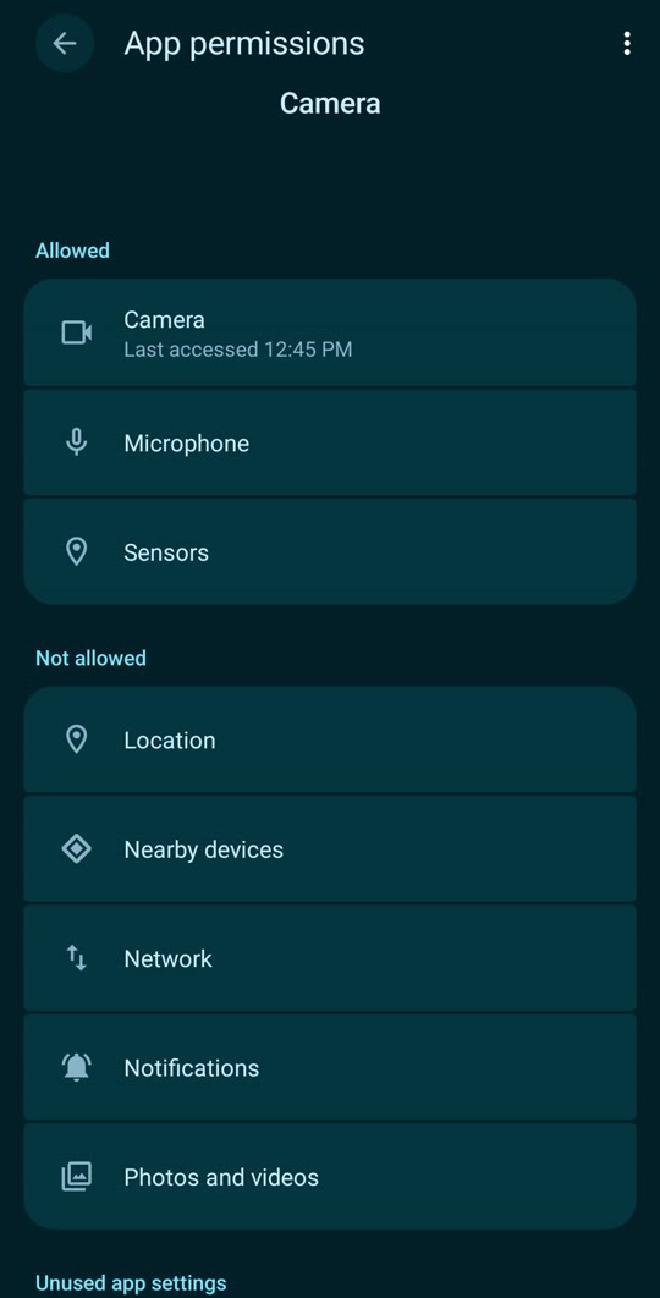
Blocking network can break features like sync, so pick what fits the app.
Sensors #
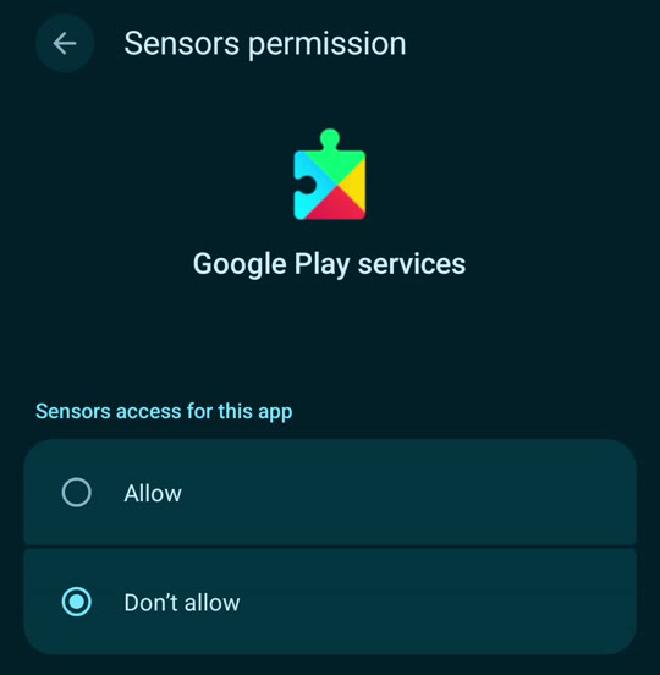
GrapheneOS also adds Sensors, in addition to the regular Android permissions. Sensors are pretty cool: that’s all the things like the accelerometer, gyroscope, compass, that sort of stuff, and you can allow or deny that to applications too. Docs
Storage Scopes #
The app can still create and access its own files. Storage Scopes lets it work without the broad storage permission that it asks for, and then you can choose any extra folders or files that it can access, so it doesn’t get your whole existing file library. Docs
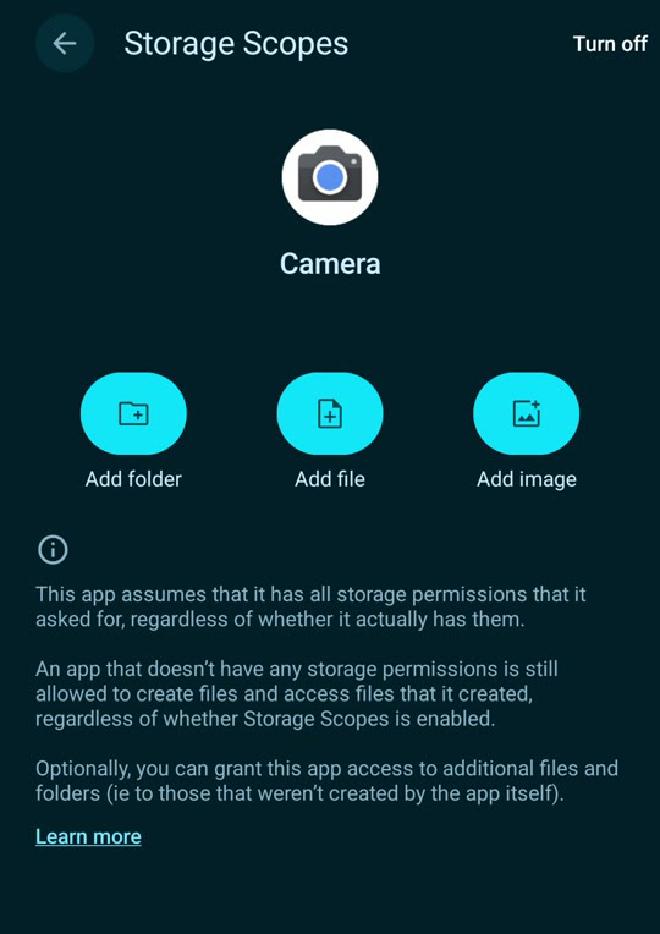
You can see all the detail GrapheneOS puts in to really lock the device down and give you some privacy back on your phone, and you can do it per application.
Sandboxed Google Play #
On the stock Google Pixel OS, Google Play has privileged system integration, so it runs as privileged on the system, not as a regular sandboxed Android app. GrapheneOS lets you run it as a sandboxed ordinary app with no special system access, so that limits what it can do. Docs
You have all your own permissions again. It’s not allowed to have camera or contacts, just exactly what it needs; I turned off sensors too. It needs network, because it does need to run its services and update.
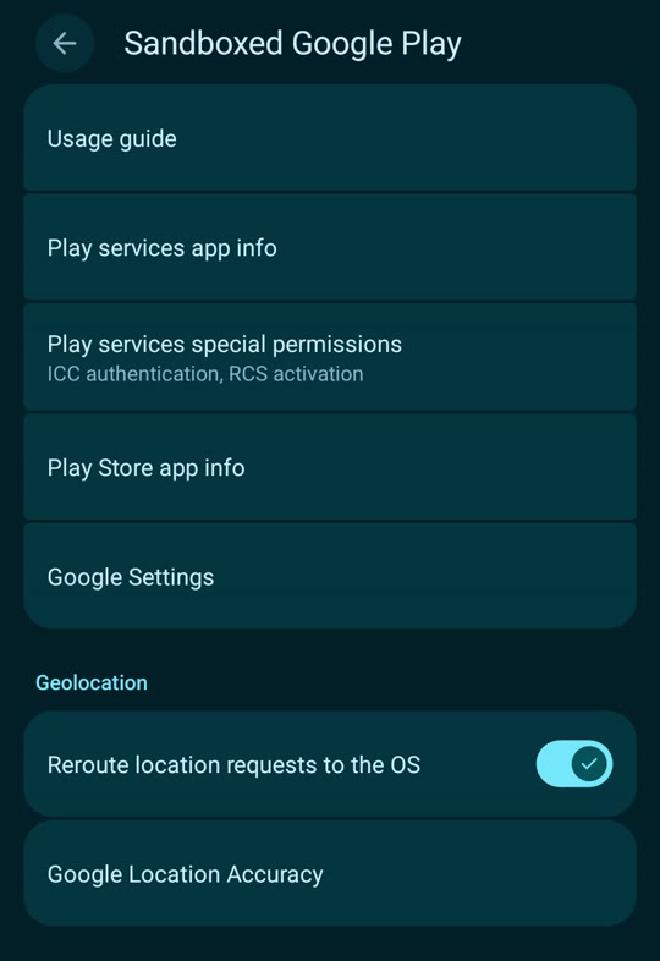
That doesn’t make it so Google can’t see anything on your phone. Obviously what you do inside of Google apps can still be seen, and if you connect applications to Google, they can still see that.
Getting Apps: Obtainium #
Sideloading is where you install applications onto your phone from somewhere other than the Google Play Store. It’s a way to get open-source software, and other software, onto your phone without going to the Play Store.
Google is starting to crack down on this with developer verification for apps on certified Android devices. They used to be pretty fine with it, and that was a cool buff that Android had over iPhone, but not anymore. GrapheneOS isn’t part of that program, so it still allows you to run apps like Obtainium as a first-class citizen to install apps that aren’t from the Play Store.
Obtainium is pretty dope. You install it once, you copy-paste the GitHub link to the Android APK, and then it’ll try to auto-update it as time goes on. This is how I try to get most of my applications and software.
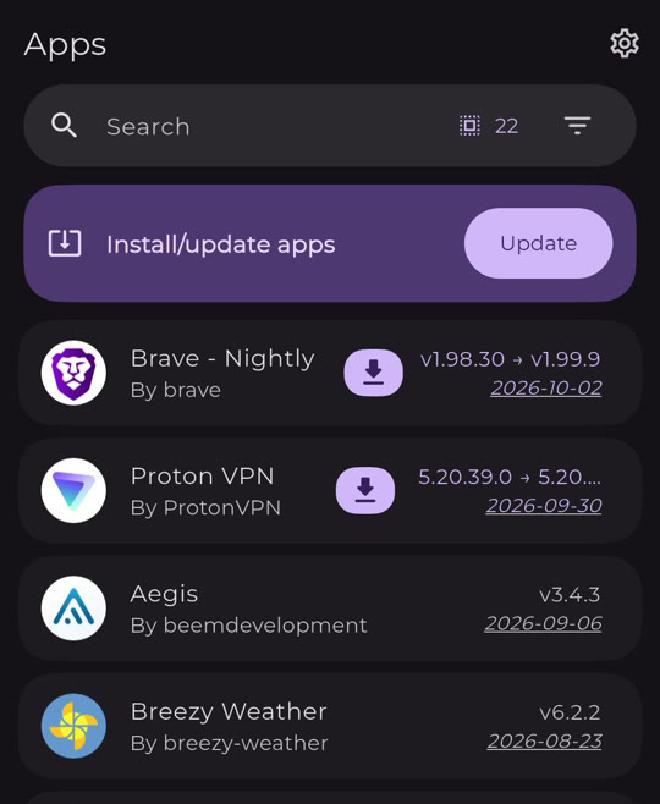
I only fall back to the Play Store for things like banking apps, or things I just can’t get somewhere else.
The Apps I Added #
One thing you notice about GrapheneOS early on is that it doesn’t come with a lot of software. If you’re using Samsung’s or Google’s phones, you have a notes app built in. You don’t have that on GrapheneOS, so you have to go gather these pieces of software to make up that gap.
- Keyboard: FUTO Keyboard. The original keyboard kind of sucked, so I added FUTO. It adds swipe and autocorrect and runs a lot better. Its code is available under FUTO’s
Source Firstlicense, so it’s not quite open source, but it’s source first. It works offline, and it has voice input processed on the device rather than shipping off to some cloud, which is a feature I quite like. - Notes: Notesnook. A pretty cool note-taking app that’s private and open source.
- Weather: Breezy Weather. There’s no weather app by default. Breezy is pretty dope: it looks a lot like Google’s weather, it pulls from a bunch of different sources, and it’s got a cool home-screen widget.
- Spam calls: SpamBlocker. A free, open-source spam blocker that pulls in numbers from a database, and it works pretty dang good. It can reject the call or silently block the number, which I’ve found to be really nice.
- Messages and calls: Signal. End-to-end encrypted messaging and calling. Works great on this phone; just install it. I do pretty much all my calling and texting with people I actually trust over Signal.
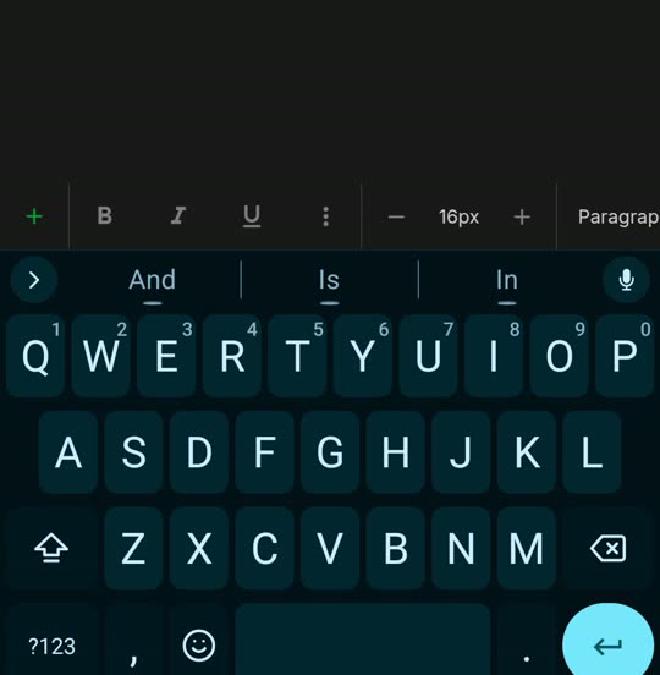
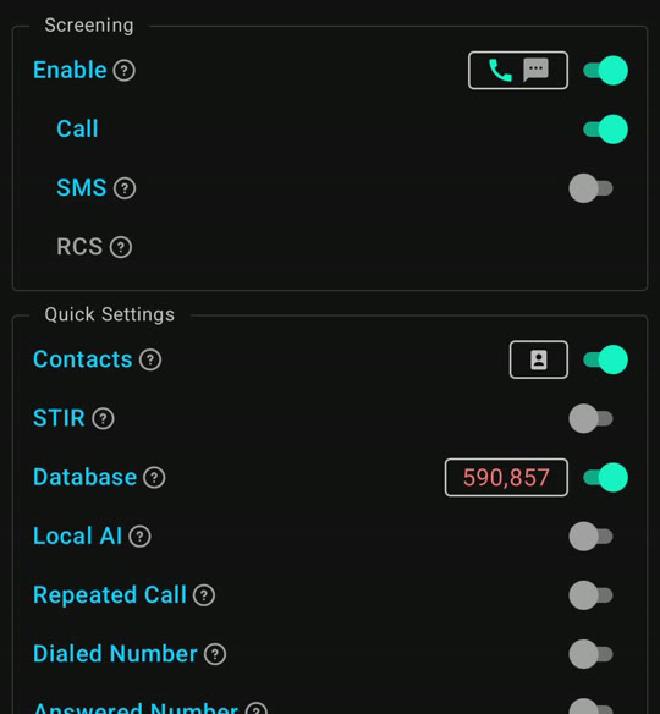
So the overall thing here: GrapheneOS is awesome. You do miss some features out of the box, like spam blocking, but you can add those back with privacy in mind.
Note: the messaging app that comes with GrapheneOS can only do SMS and MMS, so there’s no RCS. You can install Google Messages with sandboxed Play and get RCS back (GrapheneOS RCS notes). I just haven’t, because I’m trying to de-Google wherever I can, and I don’t really want them having my text messages.
Two Numbers on One Phone #
I’ve got two lines on this phone: my main carrier line and a cheap Tello eSIM with no data. The idea is to keep my private number private and use my public number in places like online shops, or for people I don’t really trust all that much.
Private line: friends, family and anything important.
Public line: online shops, sign-ups and anyone I don’t know well.
| Setting | Line |
|---|---|
| Calls | Ask every time |
| Texts | Private |
| Mobile data | Private |
Every time I make a call, it prompts me for which SIM to call from, which is really seamless. Texts default to my private number, and I can change the sending line inside a conversation.
If you’re buying something online and they require your phone number, you can give them the public number. If it gets sold, which happens a lot, hopefully your main number isn’t being sold as much, and it’s a lot easier to change the public number down the road. It’s all in an effort to keep your main number from being sold and passed around.
It doesn’t stop your carrier from knowing both lines are yours. Dual SIM itself is a Pixel feature, so this works pretty good on a regular Pixel too.
Turn Off 2G #
Another cool thing: you can limit what network type you want to use (LTE only, or 5G or LTE), and if you scroll down there’s 2G network protection, which is pretty sweet. 2G networks are just less secure, so you can just turn that off. That’s a free security buff that I run.
Emergency calls are the exception.
What I Kept From Google #
Now, you might be seeing Google Maps and Google Calendar on my home screen. I just got done saying Google’s bad, I don’t want Google, and I got this whole GrapheneOS phone to run from Google.
Calendar: I kind of need Google Calendar, because I run a calendar-syncing app that runs on Google. I’ve got the Proton suite too, and I like Proton Calendar; it’s just not quite as good as Google for syncing other calendar sources. But it’s sandboxed on the phone, so it’s not as bad.
Maps: Honestly, I’ve just kept it because I like having traffic. Google only gets my location while I’m using the app, and I don’t run it all the time. My carrier already knows roughly where the phone is from the towers, which is separate from what Google gets. The TL;DR: the juice isn’t worth the squeeze to not have Google Maps.
That’s kind of the overall theme of the phone: big privacy, but I want it to be usable still. I don’t want to walk around with a tinfoil hat and a Faraday bag every time I go anywhere. So it’s really good privacy increases, but where I can live with the phone.
Next: A Google-Free Version 2 #
Something I might do in the future is a full Google-free version 2 of my GrapheneOS deployment: no Google Play, only Obtainium or sideloading. You don’t really need Play Services for everything, even if apps say that they need it. Notifications are a big one apps need Play Services for, but you can also just not have the app send you notifications, depending on the app.
If I do it, I’ll probably make an update video, or at least post that runbook on my GitHub alongside this one.
The Runbooks #
If you’re curious about the apps I use, or want a full rundown of the settings I changed that I didn’t include in the video, it’s all in the GrapheneOS Playbook on my GitHub. Start with the setup guide, which walks the whole setup in order and links out to the details:
- Apps: every app, where to get it, and how I set it up
- Sandboxed Google Play and settings
- Two numbers and spam calls
- Backups