
I’ve been daily driving GrapheneOS for about two months now, and I’ve tried a bunch of its features. These are the ones I think are the coolest: what each one does, where it lives in Settings, and what stock Android does instead.
Watch the Video #
Google, on My Terms #
Sandboxed Google Play #
On stock Android, Google Play services is baked into the OS with special privileges, constantly calling home and doing little things in the background. On GrapheneOS it runs as a regular app with no special privileges, and it’s totally optional. You don’t have to have Google Play at all if you don’t want to.
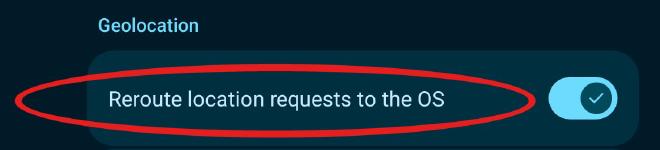
When an app asks Google Play where you are, GrapheneOS answers with its own location service instead of Google’s.
Where: Settings > Apps > Sandboxed Google Play > Reroute location requests to the OS (on by default). Docs
The Play Store, Only When I Need It #
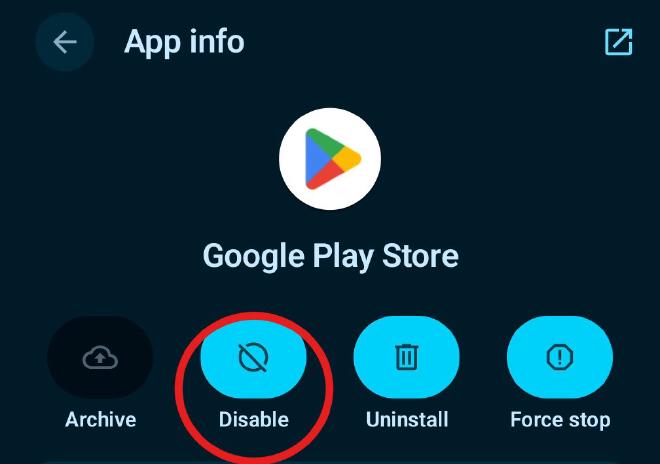
GrapheneOS lets you disable any app, not just the ones it ships with. A disabled app can’t run in the background, other apps can’t query it for information about the phone, and it keeps all of its data for whenever you turn it back on. Docs
I keep the Play Store switched off. I try to sideload with Obtainium when I can, but some apps, like banking apps, are only on Play. So when I need one, I enable the Play Store, download the app, update the rest of my apps while I’m in there, and disable it again. The one catch: apps from the Play Store don’t update while it’s off.
Where: Settings > Apps > Google Play Store > Disable
Locking It Down #
Two-Factor Fingerprint Unlock #
Your main unlock can be a strong, long PIN or passphrase that you only need after a restart, and day to day you use your fingerprint plus a short PIN. You get the best of both worlds. Docs
One thing to get right: make the main PIN longer than, and different from, the fingerprint’s short PIN. You can always swipe up and enter the main PIN instead, so if the two are the same, the fingerprint isn’t adding anything.
Where: Settings > Security & privacy > Device unlock
Duress PIN #
Enter a different PIN anywhere the PIN pad shows, and the phone wipes itself, eSIMs included. It can’t be undone, and it works on the two-factor PIN pad too. So if anybody ever forces the combination out of me, or forces my fingerprint, I can still give them the duress PIN. Docs
It made huge news: prosecutors say a man at the Atlanta airport gave border agents his duress code, and the phone wiped. He’s facing a federal charge for it, he pleaded not guilty, and the case is still going (Ars Technica). Whether he was in the right is very contested. This isn’t legal advice.
Where: Settings > Security & privacy > Device unlock > Duress Password
USB Off While Locked #
Plug a normal Android phone into something while it’s locked and it still opens a data link. That pipe can be used to do naughty things: Amnesty International found that Serbian authorities unlocked a student activist’s locked Samsung Galaxy A32 with a Cellebrite tool that attacked its USB drivers (Amnesty).
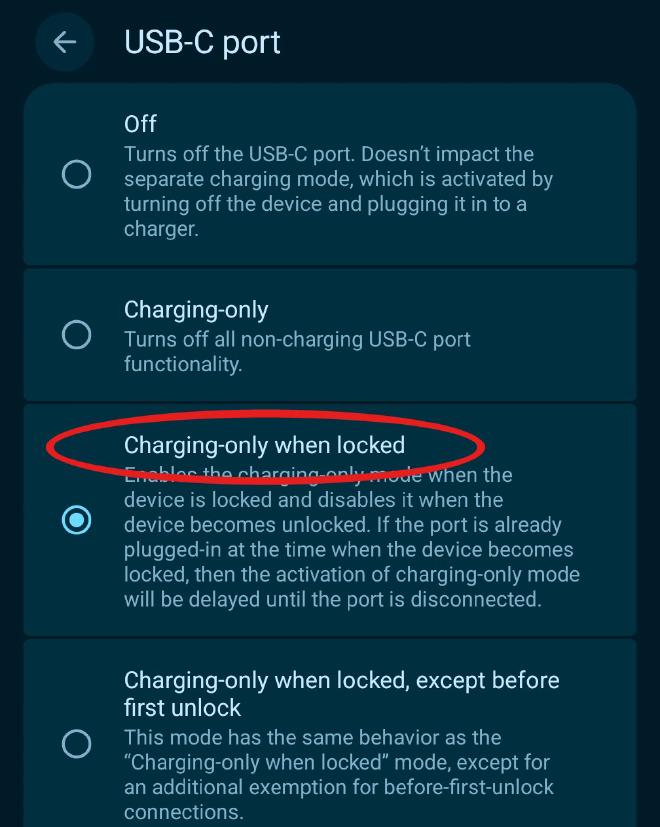
GrapheneOS’s default is Charging-only when locked. The second the phone locks, it refuses any new USB connection, in software and on the USB controller. When your phone’s locked, she’s locked. Pixels can block this too, but only if you turn on Advanced Protection. Docs
Where: Settings > Security & privacy > Exploit protection > USB-C port
Apps Get Only What I Give Them #
Network Permission #
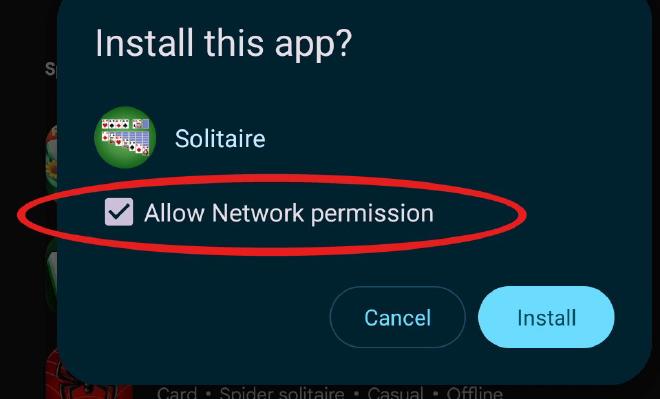
This is one of my favorites. GrapheneOS adds a Network permission, so you decide which apps get the network at all, and it asks before the app even installs. When I got Pixel Camera, it asked, and I said no. The app doesn’t break; it just assumes the phone is offline. Stock Android just gives every app the network. Docs
Where: the install prompt, or the app’s permissions afterwards.
Storage and Contact Scopes #
When an app wants your storage, give it a Storage Scope instead. The app thinks it has full access, but it can only see what it creates and anything extra you hand it. That’s super useful for social media apps, WhatsApp, or a cloud backup app that wants your whole library. Contact Scopes does the same for contacts. Storage Scopes · Contact Scopes
Where: the app’s storage or contacts permission.
Staying Ahead #
Security Preview Releases #
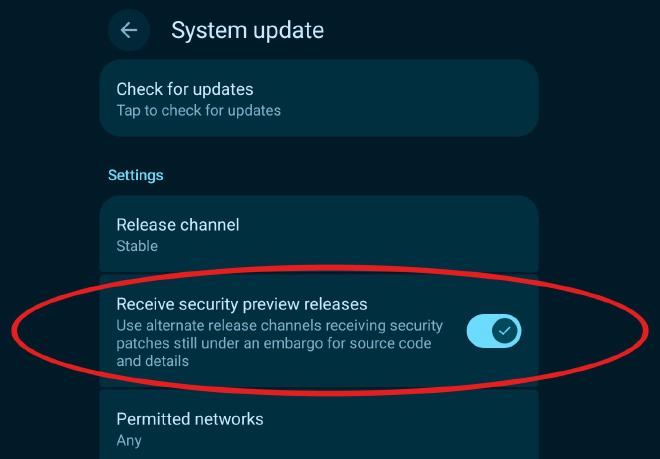
Google gives phone makers upcoming security patches before the public bulletin. With preview releases on, GrapheneOS ships them to you while they’re still under embargo, mega early. It’s just one switch in the updater. Announcement
Where: Settings > System > System update > Receive security preview releases
A New Wi-Fi Address Every Time #
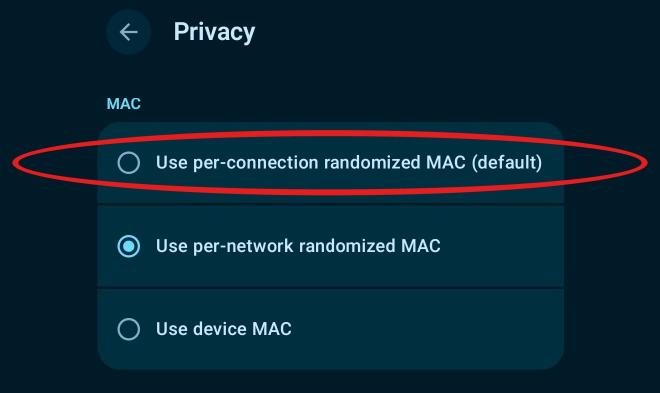
Stock Android gives each network its own random MAC address and keeps it. GrapheneOS gives you a new one every time you connect, so the coffee shop’s guest network sees a new phone each visit. It’s customizable per network: at home I use a per-network address, because I want my router to know my phone. Docs
Where: Settings > Network & internet > Internet > your network > Privacy
It’s Not Spying on Me #
No analytics, no telemetry, period. Every phone makes a few quiet background connections: setting the clock, checking the network, GPS data, updates. On a stock Pixel those run straight to Google. On GrapheneOS they run to GrapheneOS’s own servers, which only see your phone model and OS version so you get the right updates, and you can switch most of them. And the whole project is open source, so you don’t have to take their word for it. FAQ
Want a deeper dive into every GrapheneOS feature and how it differs from a regular Pixel? Let me know in the comments on the video.