
Day to day, I don’t even notice I’m running anything other than a normal Android phone. This isn’t a features post; I’ve got one of those. This is what living with it was actually like, the few things that needed a tweak, and what I’d do differently.
Watch the Video #
Why I Switched #
I’d been scouting GrapheneOS for a while, and right when I decided to pull the trigger, my Galaxy Z Fold 6’s inner screen broke. That made the timing easy.
I didn’t want another folding phone after that, so I went back to a slab: a refurbished Pixel 8 Pro from eBay for about $350, warranty and all. I don’t miss the Fold at all, honestly. Quality-wise the Samsungs still feel a little nicer to me, but that might just be me being a Samsung shill.
GrapheneOS only runs on Pixels right now, because they have the security hardware the team wants (supported devices). Motorola’s Signature 27, due in 2027, is set to be the first non-Pixel phone (9to5Google). The 8 Pro gets updates until at least October 2030 (device lifetime). Not bad.
Install Day #
The install is extremely easy. It all runs in the web installer: plug your phone into your computer, give your browser permission, then boop, boop, boop, boop, boop, and you’re pretty much done.
Provided you read the instructions, which I did not.
- Firefox doesn’t work. The installer needs WebUSB, so you need a Chromium-based browser.
- Chromium gave me a hard time on Arch Linux. I don’t know why.
- Brave with Shields down worked great. It’s on GrapheneOS’s own list of supported browsers.
First Boot: Bare by Default #
The welcome screen is like any Android phone: Wi-Fi, a couple of first-time things, set your PIN. Then it drops you on a home screen that’s extremely bland. No wallpaper, just black, and all the icons are black and white. It’s honestly kind of funny.
It ships very bare. There’s no email app, no calendar, no notes app, just the essentials. GrapheneOS has its own App Store, which is where you get sandboxed Google Play and Android Auto. I like the bare start: you put the apps you actually want on the phone, instead of being saddled with whatever bloat the manufacturer bestowed on you.
The texting app doesn’t support RCS yet. GrapheneOS plans to add it (forum), and you can install Google Messages if you want RCS now (RCS). I’m a Signal guy anyway, so I threw Signal on there and was good to go.
Setting It Up #
From there I went about my business like any new phone: install my apps, set my wallpaper, customize what I wanted. I used Obtainium to sideload when I could, and the Play Store for apps that only live there, like banking apps.
I also set a few security options the GrapheneOS docs recommend. They’re in My GrapheneOS Setup, and the full runbook is in my GrapheneOS Playbook on GitHub.
The Camera App #
I found GrapheneOS’s own camera app a bit lacking, and at first I worried the Pixel’s cameras just sucked. They don’t; it was the app. GrapheneOS says it aims to close the gap over time (Pixel Camera).
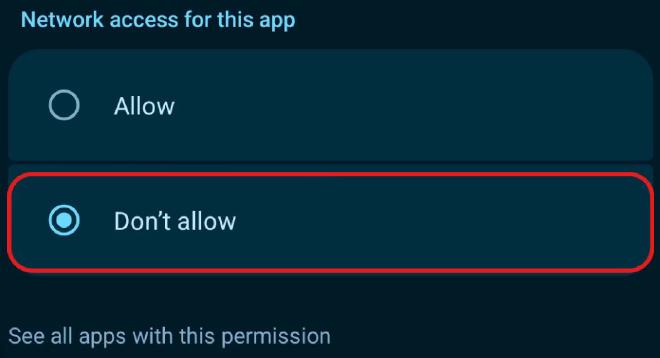
So I installed Pixel Camera from the Play Store and said no to its network access when GrapheneOS asked, right on the install prompt. Nice camera app, no Google telemetry. A win-win.
Will My Apps Work? #
I had the same question going in. The answer: every app I wanted worked.
| App | What happened | What I did |
|---|---|---|
| A couple of banking apps | Crashed on startup | One per-app toggle (below) |
| Coinbase | The Play Store said my phone wasn’t compatible | Forgot about it |
| Ring | Works fine | Nothing |
| Spotify | Works; GrapheneOS told me it checked Google’s Play Integrity | Nothing |
| Android Auto | Works | Installed it from GrapheneOS’s App Store |
| Google Calendar, Maps, Pixel Camera | Work | Nothing |
Ring was the one that surprised me most. And I know, it’s Ring, and I need to get off of it. I got it before I cared about privacy. Forgive me, I’m working on it.
When a Banking App Crashes #
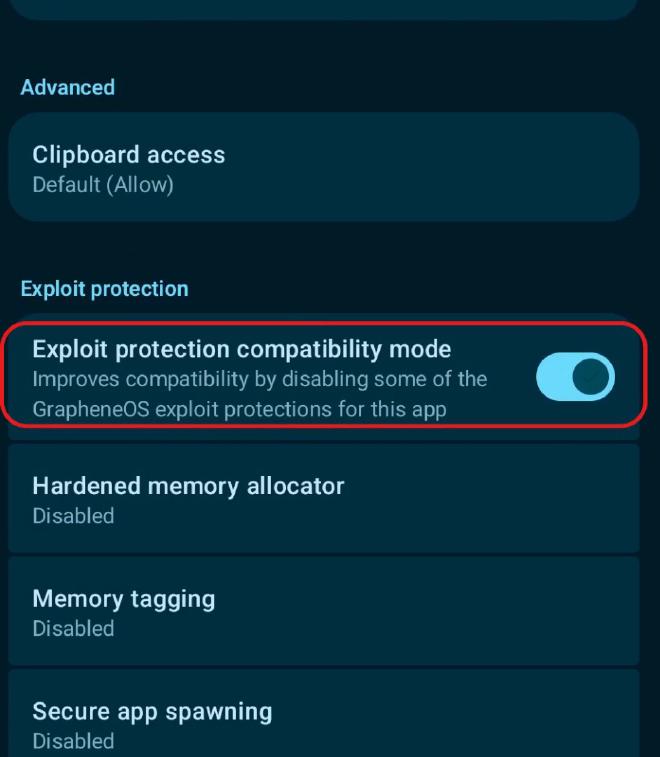
GrapheneOS adds extra exploit protections, and a few apps don’t like them. Turn on Exploit protection compatibility mode for just that app: one toggle, and the app fired right up. That app loses the extra hardening; everything else keeps it (banking apps).
Where: Settings > Apps > the app > Exploit protection compatibility mode
The App the Play Store Wouldn’t Show Me #
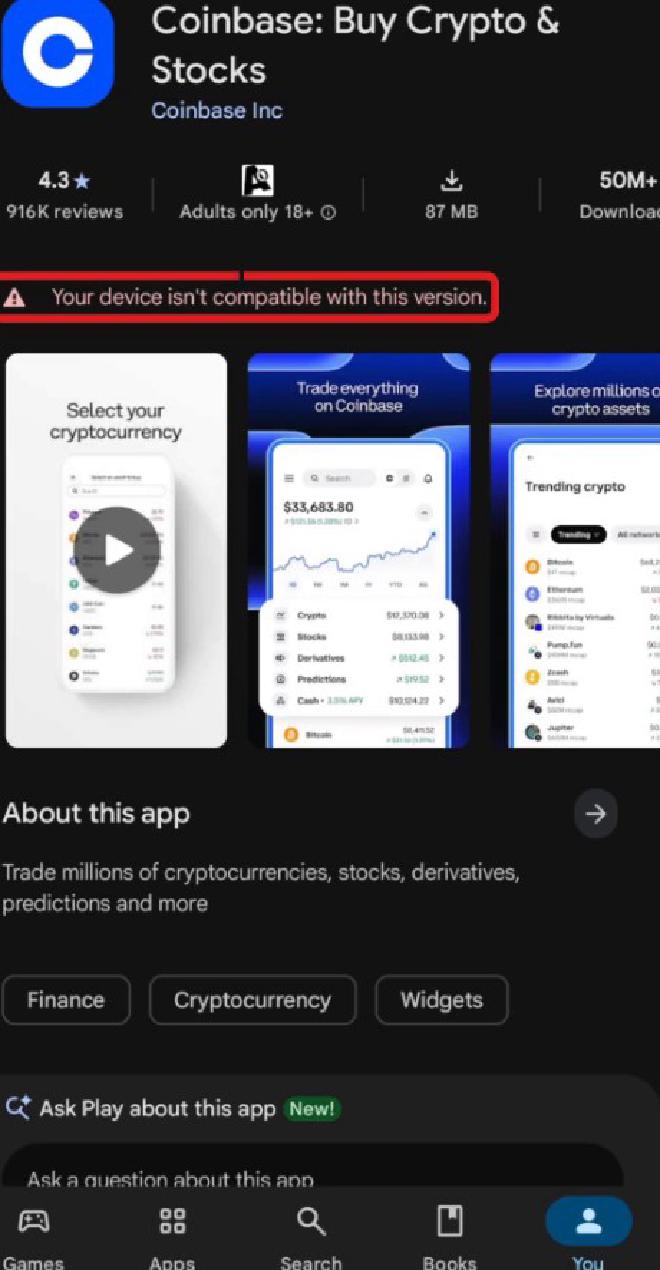
One app wouldn’t install. The Play Store wouldn’t even show it to me; it said it wasn’t compatible with my device. I couldn’t remember which app it was while filming, so it can’t have been that important to me. It was Coinbase. Its website is the obvious workaround, but I haven’t tried it on the phone.
Banks That Refuse #
Some banking apps won’t work at all. They check whether Google has certified your phone, and GrapheneOS isn’t certified, so they refuse no matter what you change (Play Integrity). You can always use your bank’s website instead, on the phone or your computer. You don’t need the app.
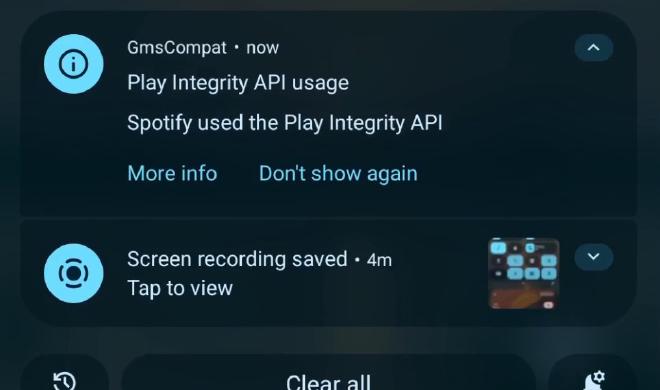
GrapheneOS will also tell you when an app checks your phone with Google’s Play Integrity API. I’ve seen it with Spotify. And if you disable Play, the app can’t do that anymore.
Tap to Pay #
You lose tap to pay with Google Wallet (requirements). A smartwatch like a Garmin can pay instead, if your bank supports it, or pull out your card or cash. I was never much of a tap-to-pay guy, so I didn’t even notice until I prepped this video.
How Much Google #
One of the neat things about GrapheneOS is that you decide how much Google is on your phone. You don’t have to install the Play Store at all; you can sideload everything. That’s a future build I’m thinking about doing.
I did use some Google: Calendar, Maps, the Play Store and Pixel Camera, and that’s about it. You don’t get the extra Pixel stuff like Call Screen, but you can run almost any Google app you want. You’re not married to it anymore.
Does Google Make It Pointless? #
No. Google gets whatever you give it inside its apps: run Google Calendar and it gets your calendar, use Maps and it gets your location, use its email and it gets your email.
But the Play Store runs as a regular sandboxed app, with no special privileges like it has on normal Android (sandboxed Google Play). Putting Google on the phone doesn’t make it a stock Pixel again. You keep the sandboxing and the exploit protections, the OS itself still isn’t spying on you (default connections), and you can disable any app whenever you want. That’s how I run Play most of the time.
Android Auto Reads Your Notifications #
GrapheneOS makes it easy to turn that off if you don’t want it (Android Auto).
Where: Settings > Apps > Sandboxed Google Play > Android Auto
Browsers as Profiles #
I run a few browsers to copy the browser profiles you’d use on a desktop (web browsing):
- Vanadium, GrapheneOS’s own browser: Chromium-based and locked down by default. My main one.
- Brave is where I sign into Google, and only there.
- DuckDuckGo for Facebook Marketplace.
That way Facebook and Google stay separated and never mix their cookies or logins.
I don’t run any social media apps on purpose, to break the scrolling habit. And in 2025, Facebook’s app was caught tracking people’s browsing through a back channel on the phone (Local Mess). Meta stopped as soon as it went public, and Vanadium and Brave already blocked it. Still, the app seems nosy, so I left it off. Your mileage may vary: you can install it, and GrapheneOS’s permission protections still apply to it.
The One Time It Bit Me #
The one time the phone really bit me was completely my own fault.
-
I changed my PIN
It asks for the new PIN twice, to make sure you don't do exactly what I did. I fat-fingered the same wrong PIN both times. -
Locked out
I couldn't get back into my phone, and without the PIN there's no way in, on any phone ([encryption](https://grapheneos.org/faq#encryption)). -
Wiped
I had no backups, so the only option was a wipe. Lost the whole phone, two-factor codes included. Super annoying. -
Reinstalled, and backed up
I went through the whole install again, then set up backups.
That could happen on any phone. The lesson is that the automatic Google backups you’re used to aren’t happening. GrapheneOS’s built-in backup is Seedvault, and you have to turn it on (encrypted backups).
How I Back Up Now #
- Seedvault, the backup built into GrapheneOS, backs up daily to the phone. Every so often, or when something big changes, I copy the backups off to my computer.
- Two-factor codes: I export my authenticator’s backup every time I add a new code.
- Signal keeps its own backup; Seedvault doesn’t cover everything (Signal backups).
Where: Settings > System > Backup
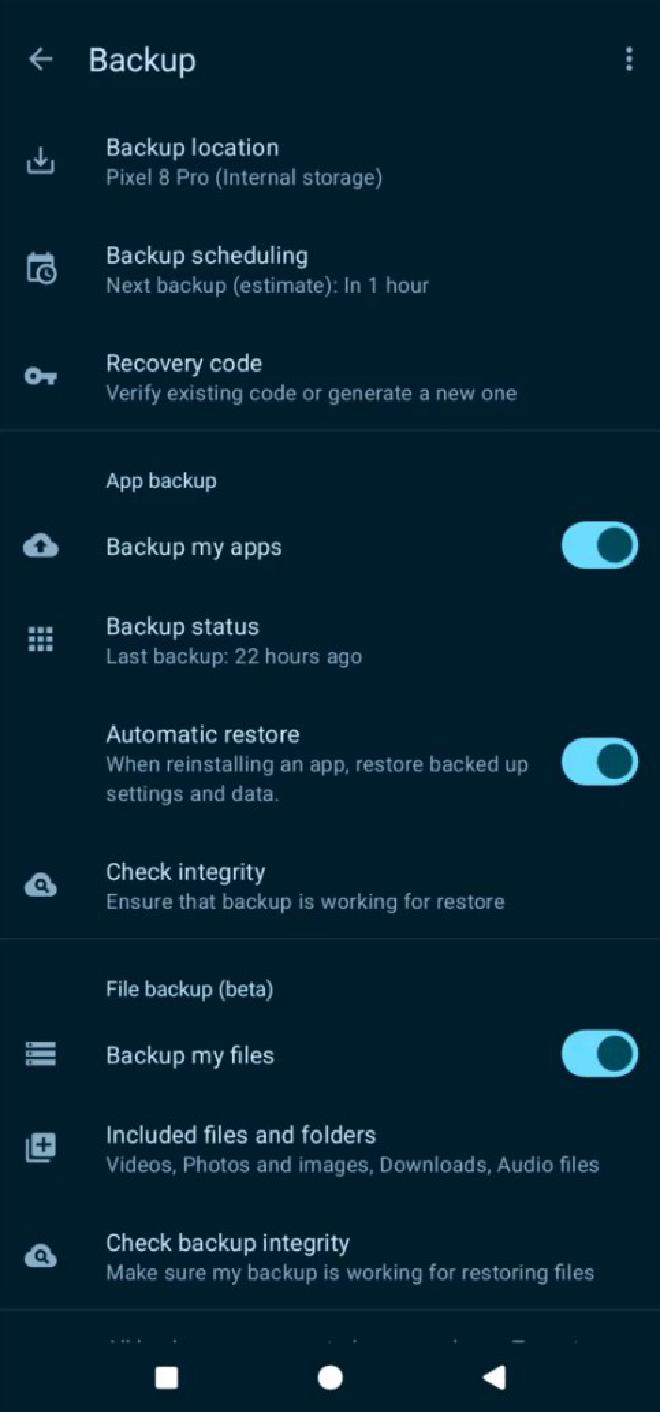
Make backups an early part of your GrapheneOS setup.
Living With It #
Day to day, honestly, I don’t notice anything different. It doesn’t feel like some crazy, locked-down private operating system. It just feels like Android: I double-press the power button and the camera opens. That’s pretty impressive, because it’s doing all kinds of extra security work and never gets in my way. The GrapheneOS team has done a phenomenal job.
The only time I really notice it is when one of its features shines through, like when I install an app and it asks, before the app even installs, whether it gets network access.
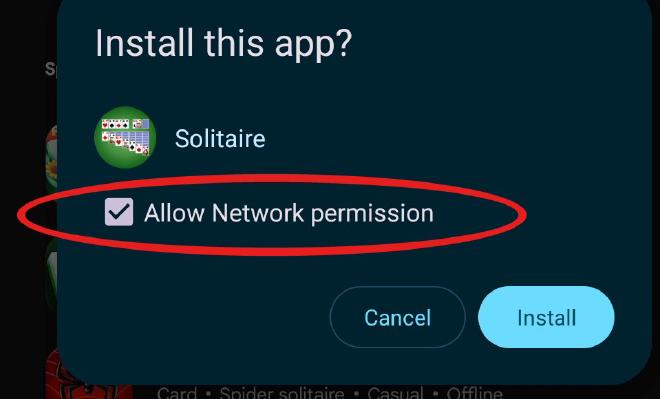
It Keeps Getting Better #
A few weeks in, a feature called Secure Paste showed up (release). Normally an app can read your clipboard as soon as you open it. With Secure Paste, an app only gets what you paste into it. It’s off by default: turn it on for all apps or per app (Secure Paste).
Where: per app, Settings > Apps > the app > Clipboard access
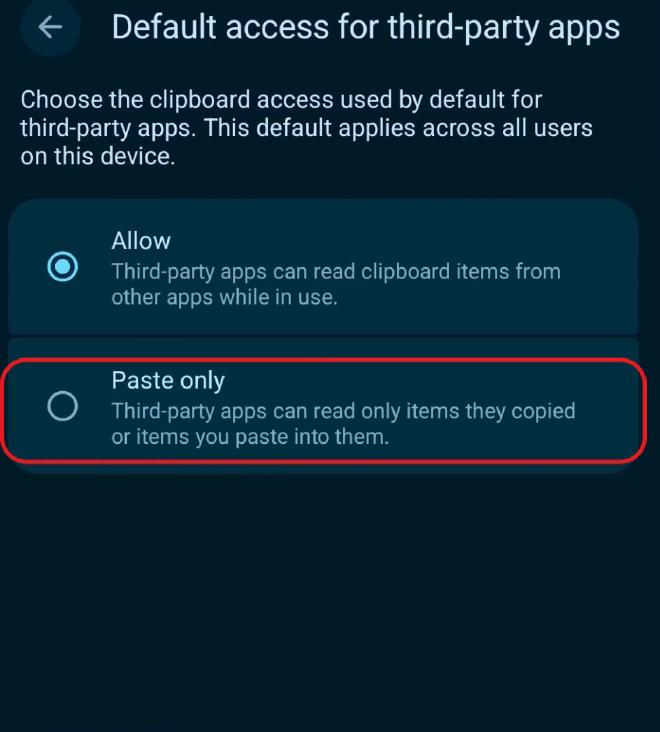
The One Quirk #
I keep the Play Store disabled until I need it. So when I want an app that’s only on Play, I enable the Play Store, get the app, and disable it again. That’s the only quirk I notice, and it’s purely how I run it.
Before You Switch #
- Use a Chromium-based browser for the web installer, and read the instructions.
- Set up backups first: Seedvault, your authenticator’s export, and Signal’s own backup.
- If a banking app crashes, turn on exploit protection compatibility mode for that app.
- If your bank refuses uncertified phones, use its website.
- Plan on paying without Google Wallet: a supported watch, your card, or cash.
- Decide how much Google you want. You can disable any app at any time.
Three Months In #
It’s been my only phone, day in, day out, and it’s been great. I forget what it is 99% of the time. So if you’ve been on the fence or worried about it, don’t be afraid. Odds are it’ll work right out of the box for you, and if an app doesn’t, there’s usually a perfectly fine workaround, like running it in a browser.
I plan to keep using GrapheneOS. It’s my daily driver, and I don’t have any plans to switch.
If you want the features behind all this, check out GrapheneOS Features I Actually Use.