
This is me nerding out about how I like to do VLANs in enterprise networks: which VLANs I run, what crosses between them, and how I lock down the stuff inside them. It’s a high-level segmentation example for an enterprise site, not a real company’s network, and not how I’d tell you to do VLANs at home. For that, I wrote What You Actually Need for a Secure Home Network.
The post goes further than the video did: what each VLAN gets to talk to, the switch settings that stop someone walking around your VLANs, IPv6, and the stuff that makes the double DMZ and the admin path hold up.
The Short Version #
- Assume the endpoint gets hacked. Laptops live alone in the LAN VLAN, and only exact things are poked through to where they need to go.
- Park stuff by the access it has or needs. Nine VLANs: DMZ, App, Servers, IoT, Dev, Management, LAN, Guest and Infra.
- The firewall brokers every crossing. It’s every VLAN’s default gateway, and the holes are host and port, as tiny as you can get.
- Inside a VLAN, the firewall can’t see a thing. Filter there with the hypervisor’s firewall and switch port isolation.
- The double DMZ: a proxy in the DMZ, a second one in the App VLAN, CrowdSec on both with one shared ban list. Only the proxy is public.
- Management is the only way into infrastructure: WireGuard, then a jump box with its own login and 2FA.
- Don’t overdo it. A VLAN per app is a nightmare to manage.
Flat Networks Are Gross #
If your network is flat, which means no VLANs, one hacked box can reach everything else on it. The first thing an attacker does is look for lateral movement: what else can they get to? Compromise the weak link, then move laterally.
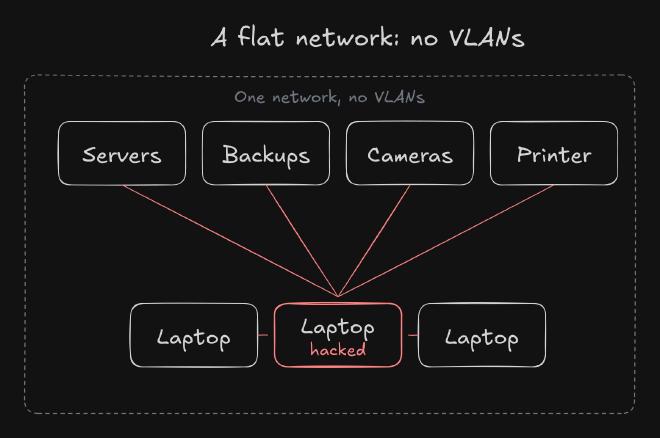
And your users are going to get hacked somehow. They’re going to get malware on their boxes. It is what it is. It’s going to happen. So you park the stuff your users work on somewhere it can’t walk around your network.
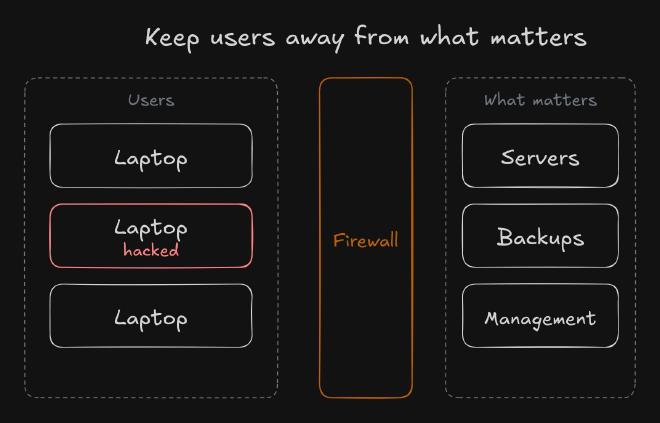
That’s a principle of zero trust. I assume a user is going to get their endpoint hacked, and I cannot let that stuff walk around on my network. Reaching a box isn’t owning it. An attacker still needs credentials or an exploit. But they can’t try what they can’t reach.
The VLAN Map #
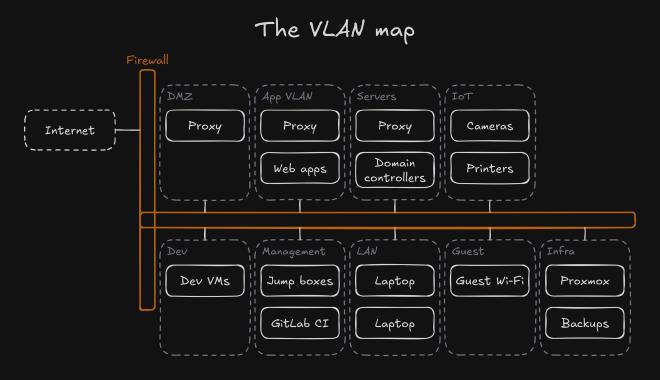
The philosophy is that you park stuff in different networks depending on what kind of access it has or needs. I break it out into about these major areas:
| VLAN | What lives there |
|---|---|
| DMZ | One reverse proxy running CrowdSec, the only thing the internet reaches |
| App | The internal DMZ: a second proxy and the apps that are public |
| Servers | Servers for internal use only: domain controllers, file servers, an internal proxy |
| IoT | Cameras and printers |
| Dev | Dev VMs and test databases |
| Management | Jump boxes, and the GitLab CI that builds them |
| LAN | Laptops and user towers. Nothing else. |
| Guest | Guest Wi-Fi |
| Infra | Proxmox, switch and AP management, the firewall’s management, backups |
On the LAN network, that’s just laptops and endpoints. That is the only thing that exists on that VLAN. It’s very isolated, and only certain exact things are poked through to where they need to go. It is not trusted. Printers don’t live there either. They go in IoT, and you either print through a print server or straight to the printer.
App vs Servers #
The App VLAN and the Server VLAN seem like the same thing, but they’re really not. The Server VLAN is for servers that aren’t public: they’re destined for internal use only. The App VLAN is just for public stuff. If it’s going to be public, it has to go in App. If it’s not going to be public, it goes in Servers. They don’t mix.
A private address doesn’t make a published app private, though. Treat everything in App as exposed, and deny App to anything internal by default.
What Each VLAN May Talk To #
Here’s what the video didn’t have room for: the rules I’d start each VLAN with. If it’s not listed, it’s denied, and every rule is host and port, not “the whole VLAN”.
| VLAN | Who may start a connection to it | What it may start |
|---|---|---|
| DMZ | The internet, on HTTPS to the proxy | The App proxy’s public listener, one port; CrowdSec’s Local API |
| App | The DMZ proxy (public listener only); staff on the LAN, to the inner proxy | Only what each app needs, such as its database |
| Servers | LAN endpoints on exact ports: AD’s ports to the domain controllers, SMB to the file server | DNS out; anything else per server |
| IoT | Print traffic from the LAN or the print server; the camera recorder | Only its own vendor’s update servers, if any; never the LAN |
| Dev | Developers’ WireGuard tunnels | Nothing in production or management |
| Management | Admins’ WireGuard tunnels, to the jump boxes only | Infra; updates out |
| LAN | Nobody: no inbound from other VLANs, and no laptop-to-laptop | Exact ports to Servers, the inner proxy, and the internet under the next-gen firewall |
| Guest | Nobody | The internet only: no internal addresses, IPv4 or IPv6 |
| Infra | Management only | Updates and what backups need, nothing else |
How It’s Wired #
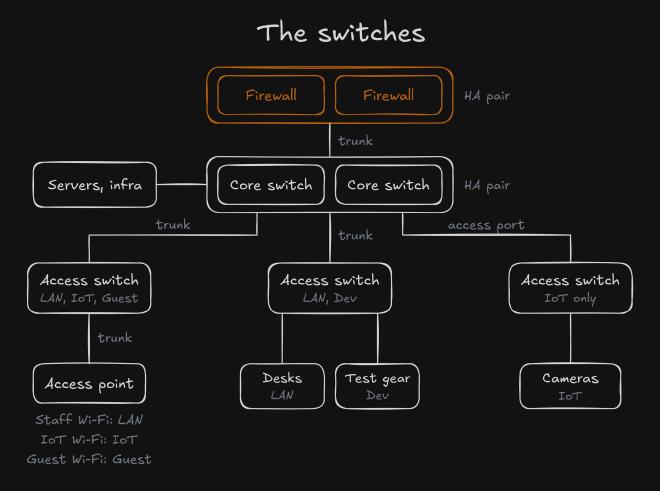
You usually have your two firewalls in HA, and this is like a star topology. You go to your core switches, also in HA. Your access switches, the punch-downs for your LAN network and your endpoints, hang off the core switches, and that’s what your users plug into. So it goes user, access switch, core switch, firewall. Access points hang off the access switches.
This is a collapsed core: core and distribution in one pair, which works for a site. A big campus adds a distribution layer, and a data center does its own thing. HA’s shorthand here, too. An active/passive pair only forwards on one unit, so size that one box for the whole load. Give the pair separate power and paths, and actually test the failover.
Trunks Carry Only What They Need #
If I’m running my regular Wi-Fi, my IoT and my guest network off one access point, I’m hosting three Wi-Fi networks. The trunk to that access point has to allow all of those VLANs, and so does the access switch, and the trunk up to the core. The trunk from the cores to the firewall is probably going to carry all of your VLANs, period. Then it just trickles down as you move.
A lot of the time, you’ll see stuff set up to just trunk all, so every trunk carries everything. Trunk all is bad. Don’t do it. Best practice, and it’s recommended by the NSA, is to only allow the VLANs that trunk is actually going to service. Say my LAN is VLAN 2, IoT is 3 and guest is 4: the trunk to that access point carries 2, 3 and 4. Nothing else.
On Cisco, that’s an allowed list on the trunk (an excerpt; your VLAN IDs and interface names will differ):
interface GigabitEthernet1/0/48
 switchport mode trunk
 switchport trunk allowed vlan 2-4
 switchport nonegotiate
switchport nonegotiate turns off DTP, so nobody can talk a port into becoming a trunk. While you’re in there, shut every port you aren’t using and park it in a dead VLAN.
One-VLAN Switches on an Access Port #
If an access switch is only going to serve one network, say just cameras, you can run its uplink on an access port off the core. You don’t need a full trunk, and it’s easier to manage and more secure: only that one VLAN goes up. The port still sits in that one VLAN, untagged, so a couple of things to watch:
- Spanning tree. If that port has BPDU guard on, like endpoint ports should, it’ll shut down the second the switch behind it sends a BPDU. Set it up as a switch-facing link.
- MAC limits. Port security that allows one or two MACs will choke on a switch full of cameras.
- Managing that switch. Its management address has to live in that one VLAN. If you want that address in Management instead, you’re back to a trunk or an out-of-band port.
Stay Off VLAN 1 #
Try to never use VLAN 1, and delete it if you can. Some Ciscos can’t delete it. VLAN 1 is the default VLAN everything rides on, and it’s untagged by default on trunks, and that can be used for some abuse. So move your stuff off VLAN 1. Don’t have an untagged network that just exists on your trunks. Even your LAN network should be a tagged VLAN.
The number itself isn’t the problem. Double-tagging attacks ride the native VLAN, so set every trunk’s native VLAN to an unused one that carries nothing. And keep management off the default VLAN.
Between the VLANs: The Firewall #
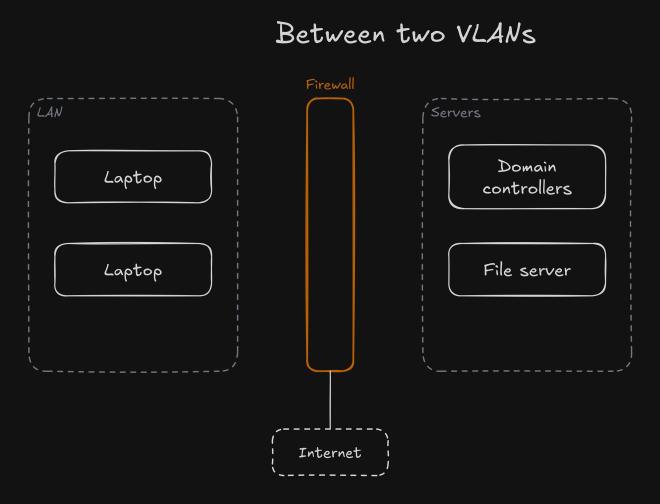
In this design, the firewall sits between all the VLANs. It’s the default gateway, and it brokers the connections. So whenever you go VLAN to VLAN, network to network, it has to go through the firewall. That gives you a place to put rules on every crossing, and if you want to run IDS/IPS or app-layer inspection, you can do it there.
My LAN network has to talk a little bit. My endpoints have to reach AD, so you can’t just have them fully isolated. That’s why you punch little holes, as little as you can get. Say I want my LAN to reach my file server: that runs through my firewall, and there I have a rule that allows port 445, SMB, from the LAN to only the file server. And it can just be from that direction. My file server should never be reaching out to laptops, so that way gets denied. The rule’s stateful, so the file server’s replies come back, but it can never start a connection to a laptop.
So that’s how you transact traffic between two VLANs: very, very isolated, the tiniest possible ports open. It’s host and port that you want to lock down.
A few things that one-port example doesn’t show:
- AD needs more than SMB. Domain controllers also need DNS, Kerberos, LDAP and RPC. Microsoft lists the exact ports. Open those to the domain controllers only, and keep identity admin off ordinary workloads.
- Inspection is a feature you turn on, and it costs. A firewall’s numbers drop a lot with IPS and TLS inspection on. Fortinet’s product matrix lists firewall, threat protection and SSL inspection throughput separately. Size the surviving HA unit for your east-west and internet traffic together, with the inspection you’ll actually run.
- HTTPS hides the payload. Unless you decrypt, the firewall sees addresses, ports and the TLS handshake, not the request. Inspect requests where TLS ends, on the proxy.
Outbound Is a Crossing Too #
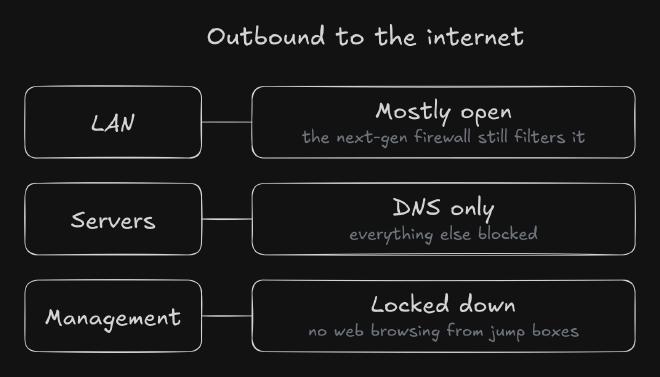
Another thing people don’t think about as much is restricting outbound traffic: actually restricting ports and protocols out to the internet.
I don’t do that a ton. On my LAN network, I just let most of it go out. I do certain blocks, but I don’t take a deny-by-default approach there, because there are so many ports services need to go out to the internet. I’d be doing nothing but playing in the firewall all day long, every single day, and I’m not really about that life. You’re still doing IDS/IPS on that outbound, DNS filtering and blocking, antivirus. You’re still doing next-gen firewall stuff on that traffic. I’m just not restricting ports, protocols or destinations for the most part.
If I was blocking the server network, I’d say: you can only have DNS traffic outbound. Everything else gets blocked.
The management network I do lock down. I call it pseudo air-gapped. You can’t surf the web on the jump boxes. It’s restricted, not actually air-gapped. It still needs DNS, time, updates, certificate checks and logging, so keep a list of those exceptions and only allow those.
Letting the LAN out is a trade-off I make so stuff just works, not the strict baseline. NIST would have you block outbound unless it’s permitted. If you leave it open:
- Each next-gen feature (IPS, DNS filtering, antivirus) has to be turned on and configured. None of that comes from leaving ports open.
- Malware can still walk out over HTTPS to a cloud service you allow. Encrypted traffic is a blind spot unless you decrypt it.
- Force DNS through your own resolvers. Block port 53 out from everything except them, and decide what you’re doing about DNS over HTTPS.
Inside a VLAN #
VLAN-to-VLAN traffic is controlled by the firewall. But the catch is, anything within a VLAN is not controlled by the firewall. If you have something on the same network as something else, it can just talk to everything over layer 2. There’s no restriction there. The firewall only gets it at layer 3, when you go from one network to the next.
Two servers in the same VLAN can talk to each other all day, and your firewall never sees it.
The Proxmox Firewall #
A good way to tackle that, once you’ve got to this point, is filtering inside the VLAN with something like the Proxmox firewall.
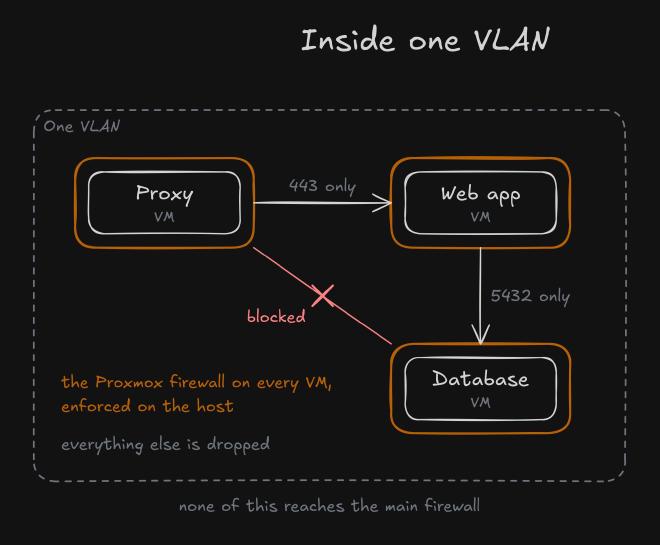
Say this is my server VLAN. Inside it I have a proxy, a web app and a database. I only allow the proxy to talk to the web app on one single port. So it’s not just anything talking to each other: it’s locked down like I do between VLANs, but within one VLAN. The proxy can’t talk to the database at all. That gets totally blocked.
And this never goes to the main firewall. It’s not burdening my firewall: it’s all done at the hypervisor level. That way I can have my main handful of VLANs and still do really tight filtering. From a management perspective, it makes a lot of sense.
Getting it to actually apply in Proxmox VE:
- Turn the firewall on at Datacenter → Firewall → Options. It’s off by default.
- Turn it on for each VM (VM → Firewall → Options), and tick Firewall on each of the VM’s network devices. Without that box, the VM’s rules don’t apply to that NIC.
- Set the VM’s input policy to drop, then only allow what you drew: proxy to web app on 443, web app to database on 5432.
- Turn on the IP filter so a VM can’t just change its address to dodge your rules.
- Test the blocked paths too, including between VMs on different nodes.
The rules run on the host, not inside the guest, so a hacked VM can’t just turn them off. A hacked Proxmox host can, and that’s one more reason Infra is only reachable from Management.
Port Isolation on the Switch #
Some might be asking: how does that work for laptops on my main network? On some switches, you can do something called port isolation. It makes it so laptop-to-laptop traffic gets broken as well, so they can’t talk to each other either. It’s the same idea as the Proxmox firewall, but in hardware, and it’s usually a configuration on your switch.
It’s a bit less granular. The ACLs, in my experience, are more of an all-or-nothing kind of thing, though I’m sure some switches do a better job.
My endpoints should never be speaking to each other. There’d be no reason for that. It’s an untrusted network, so I use port isolation there, and that’s a good move. But on my servers, I don’t use port isolation, because it would break a lot of stuff. That’s where the Proxmox firewall fits. You try to use the best tool for the job.
It has limits. Cisco’s protected ports only isolate ports on the same switch, or the same stack. Laptops on two different access switches, or on Wi-Fi, still need their own control: a private VLAN or ACL across the uplinks, and client isolation on the wireless.
The Trickle-Down Model #
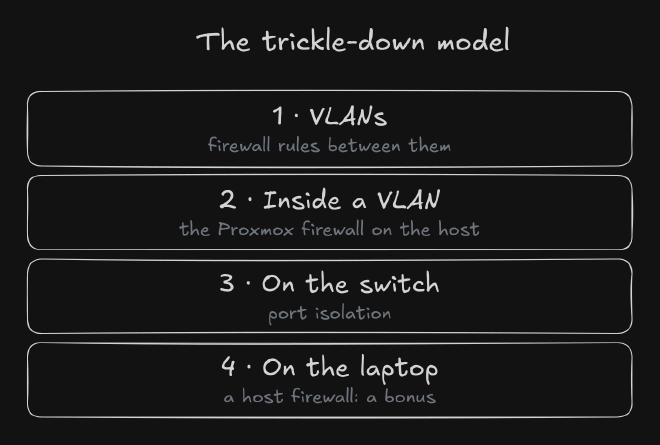
It’s the whole trickle-down model. You do VLANs on top, then filtering inside the VLANs, then port isolation.
Then you can do host-based firewalling, within the laptop itself. That’s great, and it can be set up with some general rules. It probably is out of the box even. I know it is on Windows. But it becomes a bit of a management nightmare to dive into, so it’s a bonus. You don’t want to rely on it. It’s the last effort: if I’m relying on that, something’s wrong in my chain. But run it. It is good. Push a baseline policy centrally, so one hacked laptop doesn’t get to decide its own rules.
The Double DMZ #
Traditionally, you’ll see most networks have a DMZ. That’s where they hang their public-facing resources, separate from the main network, so it’s a bit more protected. That’s super great. But I found this double DMZ design that I really liked.
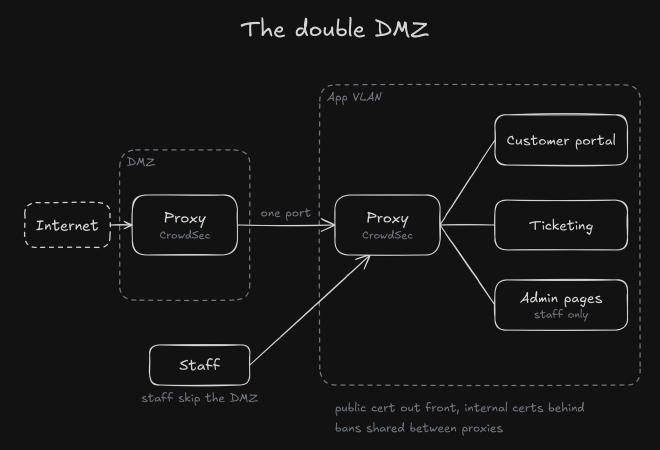
I have a main DMZ that runs just a single reverse proxy, and that proxy runs CrowdSec. Then I run an internal DMZ called the App VLAN (you can call it whatever you want), and that runs another reverse proxy. That’s where I hang the services that are public. So now they’re only public by proxy.
What’s cool about this is it parks everything behind the reverse proxy. That gives me the opportunity to do a lot of inspection with proxy-based IDS/IPS stuff. CrowdSec is really cool: it scans the logs, looks for brute-force attempts and different exploits, and then it bans. And it’s one shared ban list. These two proxies are syncing, so if one notices some badness, the other goes “okay, I’ll ban him as well”. When someone gets banned, you can flash a ban message up on their screen and send alerts to your IT team. It works really good. I like CrowdSec quite a bit.
Why Two Proxies? #
It might look a little superfluous. But my regular staff on the LAN, I don’t want to send them out through the DMZ and back in again. I want a direct path into this network that’s not through my DMZ, and that’s what the second proxy is. Not much in terms of latency: they’re pretty lean.
And if the DMZ proxy gets compromised, since it’s the most likely one to get compromised, I have an internal one behind it. My services themselves are not public. They’re only public by proxy, so only the proxy is the public entity, and it takes the brunt of the attacks.
It doesn’t fix all the exploits. The proxy just forwards the requests on, so if there’s a payload within a normal request, you’re still hacking against the thing behind the proxy. What it does do is make the proxy the only thing the internet reaches. There are no public IPs on anything else. And it’s one place for deeper inspection, rate limits and bans.
There’s a principle in security: if you try to monitor everything full bore, you’ll get so bogged down with false-positive alerts and all that nonsense. But if you have one item that funnels all your traffic through it, you can turn the monitoring verbosity way up on that one, and you can see it more.
The Catch: The Admin Pages #
Now, if the DMZ proxy does get got, you don’t want it to have access to everything the inner proxy serves, like the staff-only admin pages. So you run a second listener on the inner proxy that serves public routes only, and the DMZ proxy can only reach that. That way it can’t just ask for all the admin pages behind it.
For that to hold:
- The inner proxy enforces it, not the DMZ proxy’s config. Bind the public listener to its own IP and port, only put public hosts and routes on it, and reject any hostname it doesn’t know.
- The firewall enforces it too. The DMZ proxy can reach that one IP and port and nothing else. Not the staff listener, not the apps directly.
- Host and SNI headers are attacker-controlled. Hit the public listener with the admin hostname and with the bare IP, and make sure you get nothing.
Getting the Client IP Right for CrowdSec #
With two proxies in a row, the inner proxy sees every request as coming from the DMZ proxy. If CrowdSec reads that, it bans your own proxy. Or worse, it trusts an X-Forwarded-For header some client typed in. So:
- The DMZ proxy overwrites the forwarding header with the real client address. It never appends to whatever the client sent.
- The inner proxy only trusts that header from the DMZ proxy’s address. In NGINX, that’s the realip module:
# inner proxy, public listener: trust the client address only from the DMZ proxy
set_real_ip_from 10.0.10.10;   # the DMZ proxy (example address)
real_ip_header X-Forwarded-For;
- Staff coming straight from the LAN don’t pass through the DMZ proxy, so that listener trusts nobody’s header.
- The shared ban list comes from CrowdSec’s Local API. Each proxy’s log processor reports to it, and each bouncer pulls bans from it. Put the LAPI somewhere the DMZ can reach on that one port only, and protect its credentials. And remember, a shared ban list shares its mistakes too, so test with a real ban before you trust it.
The board says “public cert out front, internal certs behind.” If that inner hop is HTTPS, make the DMZ proxy actually verify the inner certificate. NGINX doesn’t by default, so turn on proxy_ssl_verify.
Getting Into Management #
I like this approach quite a bit. I have a dedicated management network, and it’s the only network that can talk to infrastructure. If I want to reach the firewall to do any kind of maintenance, or talk to my backups, that can only come from management. No other network can reach it.
That network is pretty trusted. It has a lot of access, so it needs to be scrutinized in what it can do.
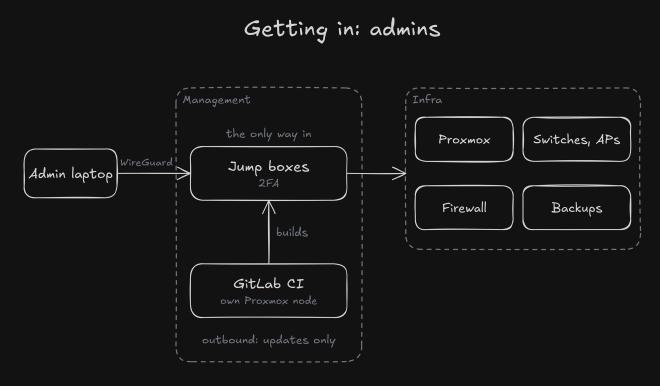
Here’s what I’ve done with that. My normal, everyday laptop, I call it the admin laptop, needs an internal VPN to even reach management. I use WireGuard. I have a VPN configuration that I enable on my machine to punch a hole through to that network. It’s not a traditional setup in the firewall: I have to be on the main network already, and then use the WireGuard VPN on top of that, to even have the opportunity to authenticate to my management boxes.
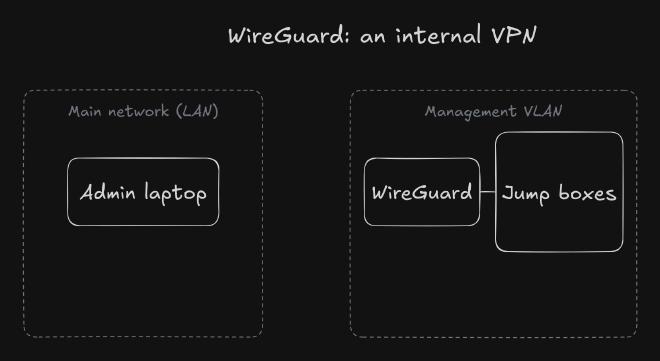
When I get there, I’m still faced with a jump box running its own login and its own two-factor. Once that all happens, I’m in the management network, and I can RDP into my box and run management for whatever else I need.
The jump boxes get built automatically through CI, and there’s a nice side effect: a jump box becomes kind of like a VDI. I can connect to the same one from multiple machines, and it’s preconfigured with everything I need. The stuff that admins the network, like the GitLab CI for DevSecOps work, runs in the management network as well, because it has a lot of access.
Making the Admin Path Hold Up #
- WireGuard has no MFA. It authenticates device keys, and that’s it. The 2FA lives on the jump box, so the jump box has to be the only thing the tunnel reaches. Revoke a key the day a laptop goes missing.
- Harden the device you come from. A hacked everyday laptop can ride an authenticated admin session. A dedicated, hardened admin device, or at least a separate admin session, plus separate privileged accounts, closes most of that gap.
- Harden the jump boxes. Allow-listed outbound only (no web browsing), log the sessions, don’t install anything the job doesn’t need, and rebuild from CI instead of patching by hand.
- Keep CI in Management dedicated to admin work. That pipeline builds the keys to the kingdom. So no untrusted developer jobs, no shared runners, narrowly scoped deployment credentials and reviewed inputs. General-purpose CI goes outside Management.
- Plan the day it breaks. If WireGuard, the firewall or the jump boxes go down, you need a controlled emergency console or out-of-band path to get back in.
Developers Get Their Own Tunnel #
A lot of my network design is around security that’s really good, but that my users can’t feel for the most part. Developers are a good example. Instead of making them carry two machines or work through jump boxes, each developer gets their own WireGuard key with a split tunnel into Dev.
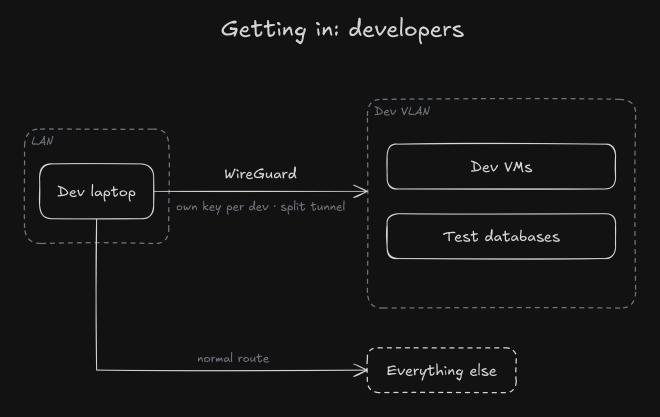
Their dev traffic goes over the tunnel, and everything else takes the normal route. The tunnel’s just the convenience. The firewall’s the control: it lets each key reach only the Dev targets it’s meant to, whatever the client’s route table says. Dev gets no route to production or management, deployments go through their own authorized pipeline, and test data isn’t production data.
What the Video Skipped: The First Hop #
All of that is routing between VLANs, and it assumes devices land in the right VLAN and can’t lie about who they are once they’re on it. These switch features make that true. Turn them on one at a time, in monitor or permit mode first, because static-IP IoT and switch uplinks are what break.
| Feature | What it stops | What to set |
|---|---|---|
| 802.1X | A random device plugged into a wall jack landing in your LAN | Port-based authentication, certificate-based for laptops; the RADIUS server can put a device in its VLAN dynamically; MAC bypass only for devices that can’t do it, and into a restricted VLAN |
| DHCP snooping | A rogue DHCP server handing out a fake gateway | Trust only the uplinks toward your real DHCP server; rate-limit the rest |
| Dynamic ARP inspection | ARP poisoning a laptop’s gateway | Checks ARP against the DHCP snooping table; static entries for static devices |
| IP source guard | A device spoofing another’s IP | Locks each port to the address DHCP gave it |
| RA guard | A device announcing itself as the IPv6 router | Allow router advertisements only from the firewall’s ports |
| BPDU guard | Someone plugging in a switch and messing with spanning tree | On every endpoint port; not on switch-facing ones |
Wi-Fi Is VLANs Too #
The access point maps each Wi-Fi network to a VLAN: staff Wi-Fi to the LAN, IoT Wi-Fi to IoT, guest Wi-Fi to Guest. On the switch side, that’s the trunk from earlier, carrying exactly those three. The rest is on the wireless side:
- Staff Wi-Fi uses WPA3-Enterprise, or WPA2-Enterprise, with 802.1X, the same identity as the wired ports.
- IoT Wi-Fi gets a pre-shared key and client isolation, so devices can’t talk to each other.
- Guest Wi-Fi gets client isolation and the internet only, with no internal addresses, IPv4 or IPv6.
- The APs’ own management lives in Infra, not on any of the networks they serve.
That’s for APs that drop traffic straight onto the switch. If your controller tunnels client traffic back to itself, the VLANs live at the controller instead.
IPv6 Gets the Same Rules #
If your VLANs have IPv6, every rule above needs an IPv6 twin, or IPv6 goes right around all of them. Laptops will happily use IPv6 if anything on the wire offers it, including an attacker’s router advertisement. Either run IPv6 with the same zone policy, RA guard and DHCPv6 protections, plus the ICMPv6 it needs to work, or block it on purpose. RFC 9099 is the operator’s guide.
Logs Nobody Reads Don’t Count #
Denied lateral movement only helps if somebody sees it. Send the firewall, DNS, VPN, switch and 802.1X, jump box and hypervisor logs to one place, keep the clocks in sync, alert on the stuff that matters (and on a log feed going quiet), and know who’s looking.
Don’t Overdo It #
The big thing I want to say is just don’t overdo it. Some people go absolutely nuts with VLANs when they get started in this realm. I thought I went a little nuts with my seven or eight, whatever it is here (it’s nine). But some people go frickin’ insane. They have a VLAN for every single application, or every single service, or every single server. That is not sustainable. That is a nightmare. Those are all rules you have to manage, and you’re probably going to fall off the back of the bus with proper management.
So don’t go crazy with it. This approach works pretty good for me: just a few VLANs. They’re easy to take care of once you have them built. And if you pair that with filtering inside the VLANs, where you leverage the Proxmox firewall, and you use port isolation on the switches, you can get a lot of that same security for way less hassle.
The Proxmox firewall is microsegmentation too, just done on the host, where the workloads are, instead of with a new VLAN for every app.
From Flat to Segmented #
If you’re starting from a flat network, don’t flip it all to deny on day one. Something’s going to break that nobody knew about.
-
Map it
Before anything moves
List what lives where and who owns it. Park each thing in the VLAN its access needs. -
Allow and log
Weeks, not days
Move a group into its VLAN behind an allow rule that logs. Watch what actually crosses, long enough to catch month-end jobs and the backup that runs on Sundays. -
Narrow
Host and port
Swap the broad rule for the host-and-port rules you saw, and ask each service's owner about the once-in-a-while jobs the logs missed. -
Deny
With a way back
Drop the broad allow, keep logging what's denied, and have the rollback ready. -
Review
Every exception
Give every exception an owner and an expiry date, and actually go back through them.
Check Yours #
- Nothing but endpoints in the endpoint VLAN, and endpoints can’t reach each other
- Every rule between VLANs is host and port, and stateful, in one direction
- Infrastructure answers only to Management
- Trunks list their VLANs; DTP off; native VLAN unused; unused ports shut
- Only one thing is public, and it can reach only one listener inside
- Filtering inside the VLANs that need it, with the blocked paths tested
- 802.1X, DHCP snooping, ARP inspection and RA guard on the access switches
- IPv6 has the same rules, or none of it gets through
- Egress decided per VLAN, with DNS only through your resolvers
- An emergency way in for when the VPN or the firewall is down
That’s How I Do It #
I know that might have been like drinking water through a fire hose for people who aren’t doing this day to day. I really enjoy network security, and this stuff really makes my ’tism happy, so I wanted to nerd out about some higher-level networking. Hopefully you enjoyed it.
Sources #
- NIST: SP 800-207, Zero Trust Architecture and SP 800-41 Rev. 1, firewall policy
- CISA: Microsegmentation in Zero Trust, Part One (2025)
- MITRE ATT&CK: Lateral Movement, TA0008
- NSA: Network Infrastructure Security Guide, §9 on trunking, the default VLAN and the native VLAN
- Cisco: Campus LAN and wireless design guide, VLAN trunks and protected ports
- Microsoft: AD and AD DS port requirements, Windows Firewall and the enterprise access model
- Proxmox: the Proxmox VE firewall
- CrowdSec: multi-server setup and the NGINX bouncer
- NGINX: how requests are matched to a server, the realip module and proxy_ssl_verify
- WireGuard
- IETF: RFC 9099, IPv6 operational security and RFC 6105, RA guard
- Fortinet: product matrix, for how inspection changes firewall throughput